Connecting to openGauss Using DBeaver
This document describes how to use the DBeaver client tool to connect to and operate an openGauss database.
Prerequisites
- DBeaver has been installed and can run properly.
- openGauss has been installed. This document uses openGauss 6.0.3 as an example.
- Network connectivity: the client can access the listening port of the openGauss server.
Preparing the openGauss Connection User
Use gsql to connect to the database.
bashgsql -d postgres -p 5432 -rConfigure the user encryption mode.
This example uses the MD5 authentication method, which requires the database to store MD5 password digests. If the MD5 authentication method needs to be used in a controlled test environment, change the value of the system parameter password_encryption_type to 0.
sqlALTER SYSTEM SET password_encryption_type TO 0;WARNING
- password_encryption_type is a global parameter. After it is set to 0, the passwords of all users created or modified subsequently are encrypted using MD5. MD5 is a weak encryption algorithm and will reduce the password security of the entire database. Therefore, perform this operation only in a controlled test environment. Do not perform this operation in the production environment.
- Before the change, run
SHOW password_encryption_type;to record the original value. After the test is complete, restore the original value in a timely manner, for example,ALTER SYSTEM SET password_encryption_type TO original_value;, and then change the password of test_user again so that the new password is encrypted using the restored encryption mode.
Create a connection user.
sqlcreate user test_user with password '******';NOTE
In MD5 encryption mode, the password is encrypted using MD5 when a user is created or the password is changed.
Grant permissions to the user.
In this example, test_user creates and queries tables only in its own schema, and no additional permissions are required. In the actual production environment, follow the principle of least privilege and grant only the permissions required by services. Do not grant administrator permissions (such as
grant all privileges) to a common connection user.Exit gsql.
sql\q
Configuring Client Access Authentication
By default, openGauss prohibits remote connections. You need to manually configure client access authentication before accessing openGauss remotely. The configuration method is as follows:
Add a client authentication rule.
bashgs_guc set -N all -I all -h "host all test_user 192.168.0.0/24 md5"NOTE
- test_user is the username for connecting to the database.
- 192.168.0.0/24 is an example client network segment. Replace it with the actual IP address or network segment of the client that needs to access the database.
- Remote connections cannot use the initial user omm.
WARNING
In the production environment, do not set the network segment to 0.0.0.0/0 (allowing access from any IP address). Otherwise, database accounts are exposed to the entire network, which significantly expands the attack surface. Configure only the controlled client IP addresses or network segments that actually need to access the database.
Restart openGauss for the configuration to take effect.
bashgs_om -t restart
For details about the configuration, see Configuring Client Access Authentication.
Connecting to openGauss Using DBeaver
Step 1: Open DBeaver
Start the DBeaver client.
Step 2: Create a Connection
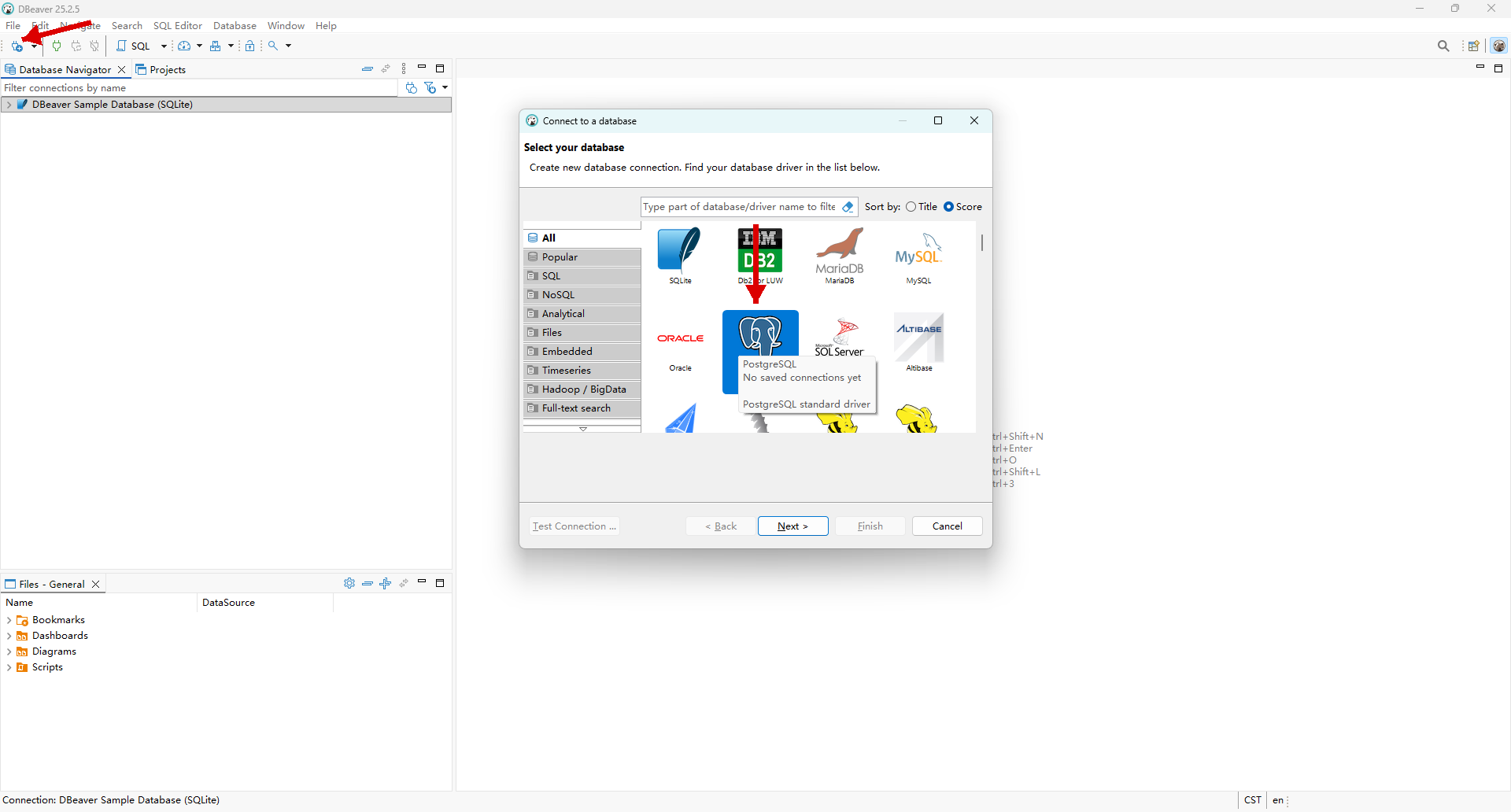
Click the connection button at the top of the window, select "PostgreSQL" as the database driver, and double-click to confirm.
Step 3: Enter the Connection Information
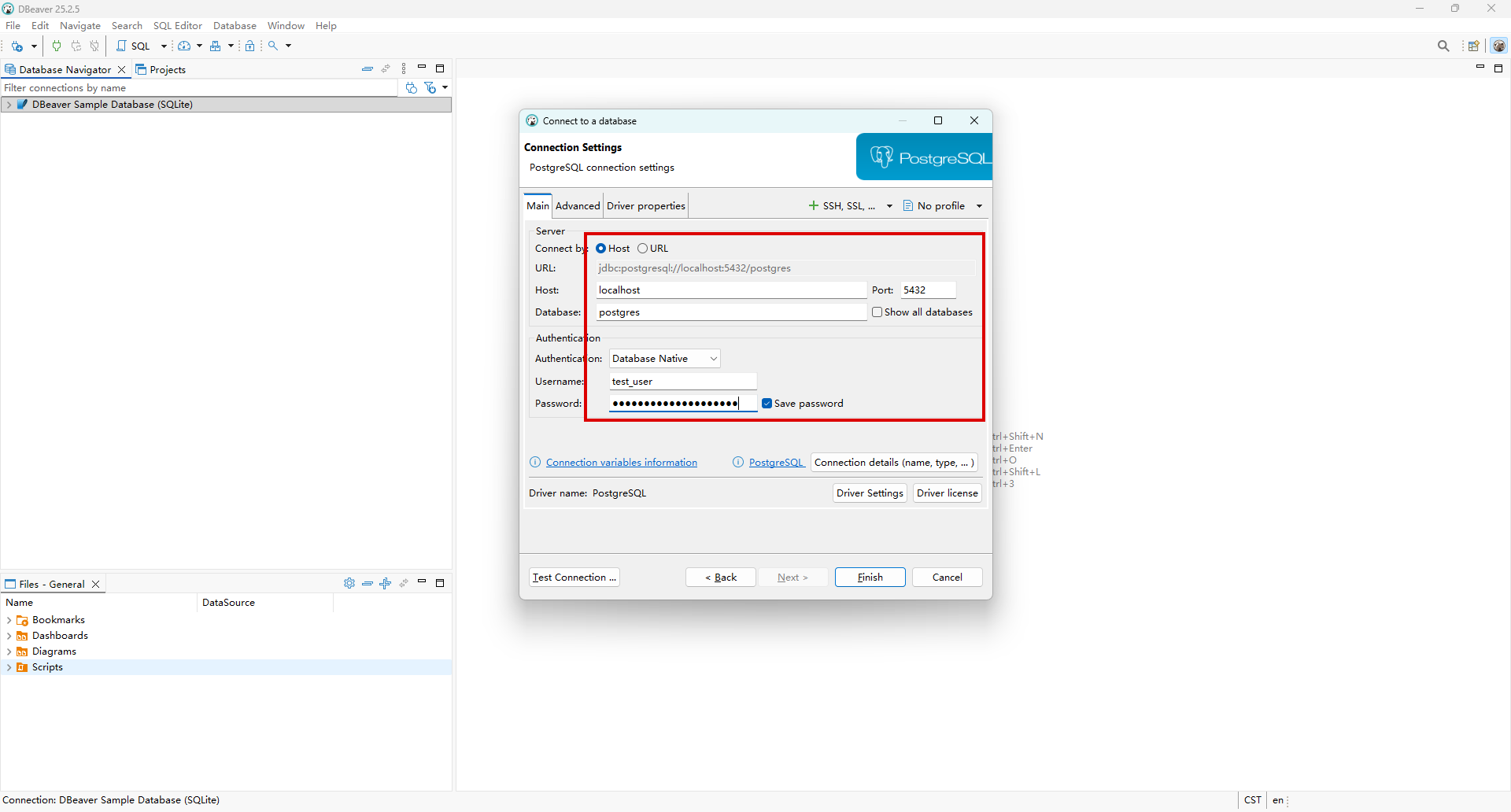
Enter the following information in the displayed configuration window:
| Configuration Item | Description |
|---|---|
| Host | openGauss server address |
| Port | 5432 (default) |
| Username | test_user |
| Password | Corresponding password |
Step 4: Test and Add the Connection
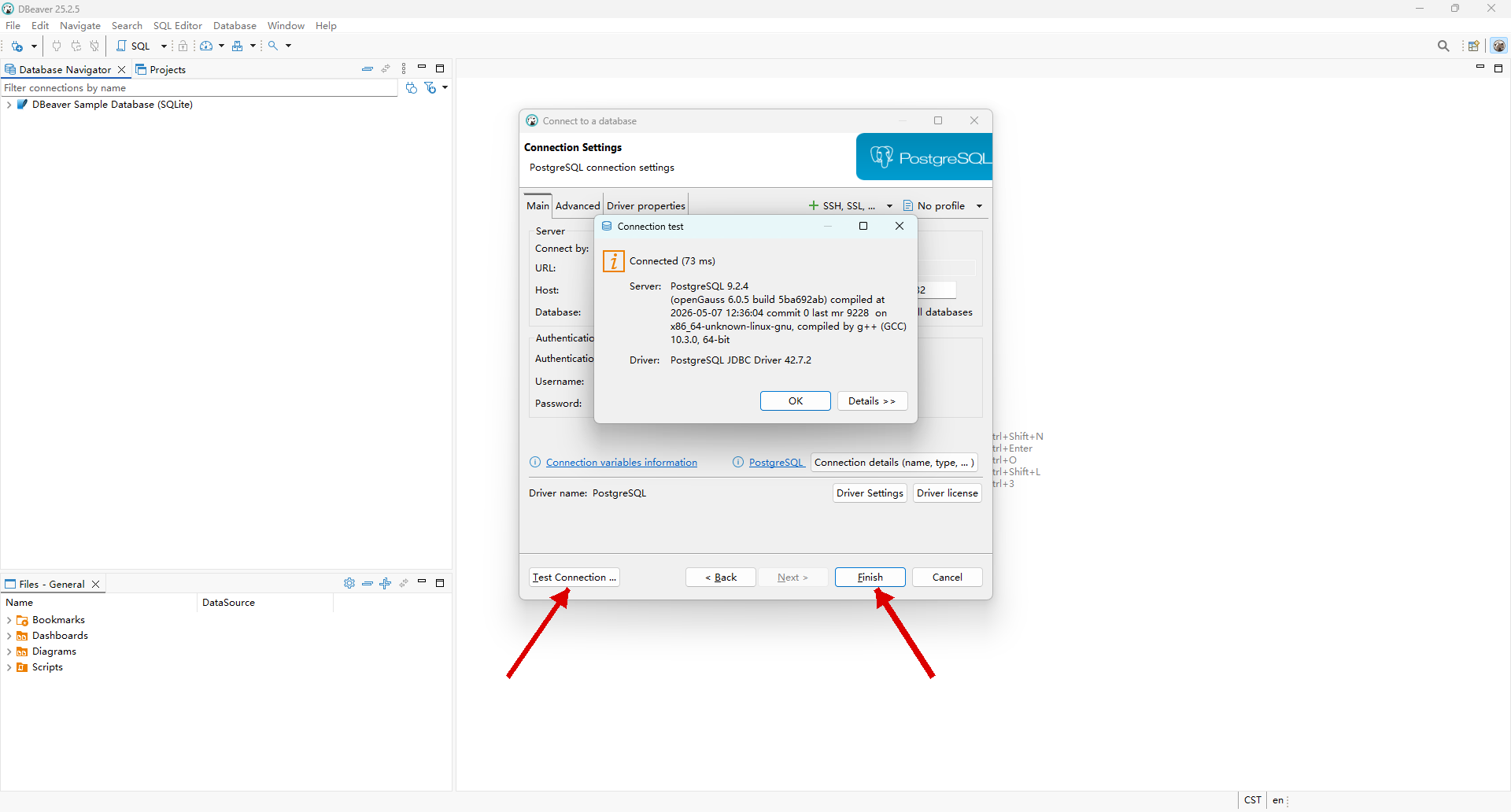
Click "Test Connection". If the connection is successful, the openGauss version number is displayed. After confirming that the information is correct, click "Finish" to add the connection.
Step 5: Create an SQL Editor
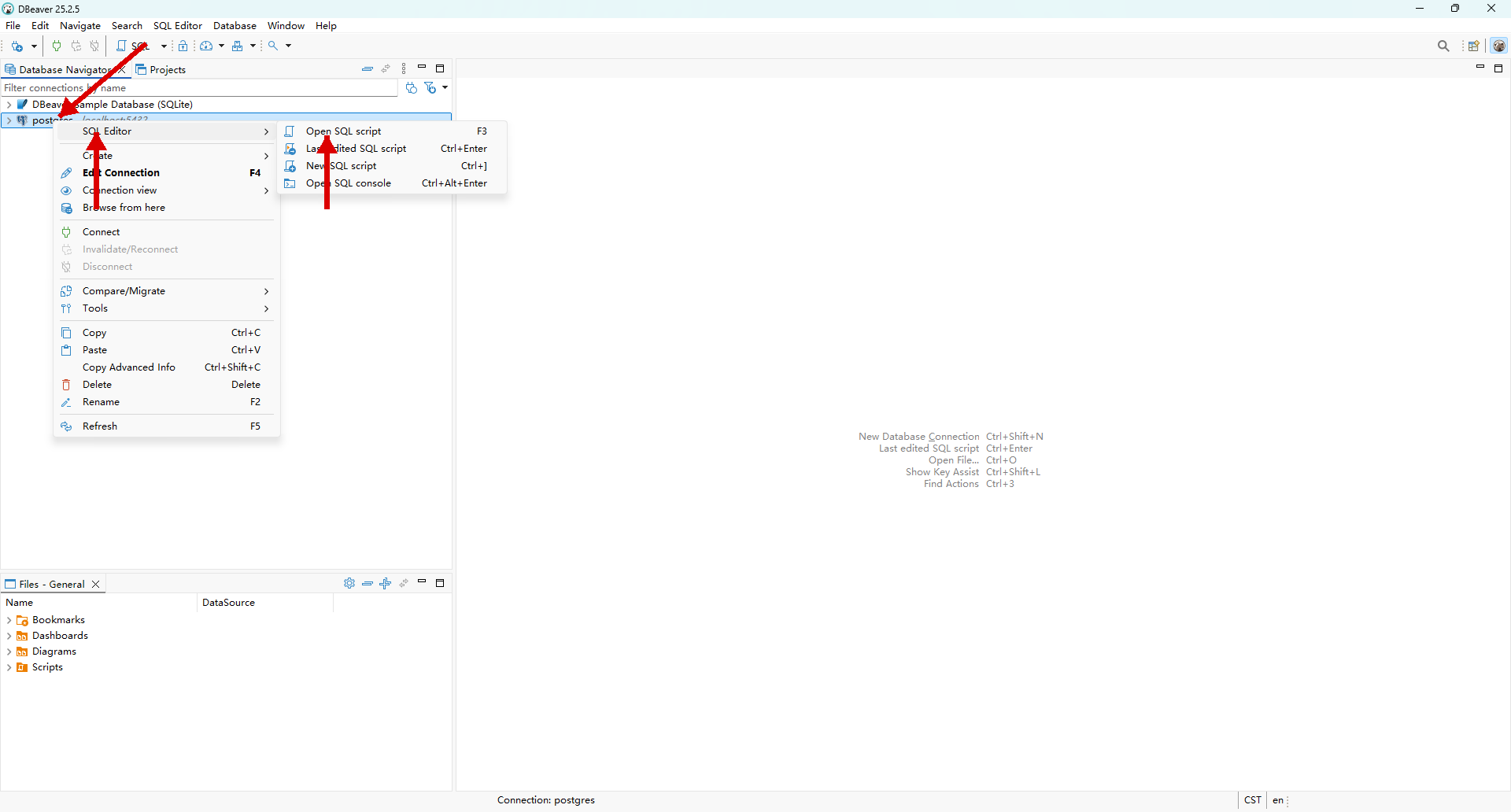
In the connection list on the left, right-click the added connection and choose "SQL Editor". In the displayed submenu, choose "Open SQL script" to create an SQL editing window.
Step 6: Execute SQL Operations
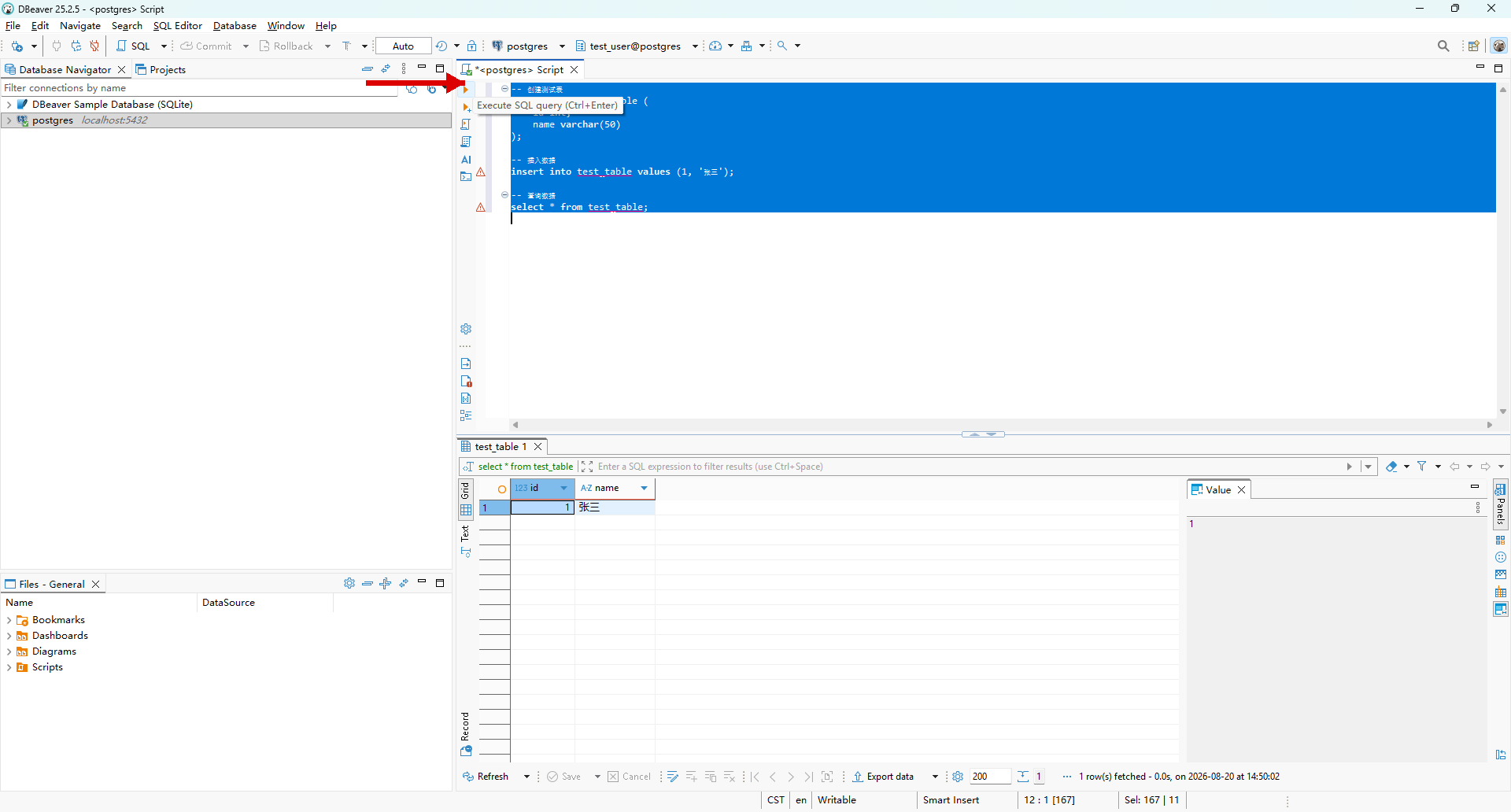
Enter the following sample statements in the SQL editor:
-- 创建测试表
create table test_table (
    id int,
    name varchar(50)
);

-- 插入数据
insert into test_table values (1, '张三');

-- 查询数据
select * from test_table;
Select the SQL statements to be executed and click the "Execute SQL query" button. The execution result is displayed in the lower part of the SQL editor.
Troubleshooting
| Symptom | Possible Cause | Suggestion |
|---|---|---|
| Connection timeout | Network disconnection or firewall blocking | Check whether the server port is open and whether the firewall rules are correct. |
| Authentication failure | Incorrect username or password | Ensure that the username and password are correct and check whether the password has expired. |
| Connection refused | Client access authentication not configured | Configure client access authentication as instructed in this document. |