From Data to Intelligence: A Practical RAG Architecture with openGauss + openEuler Intelligence
With the rise of AI and LLMs, traditional search engines — limited to simple keyword matching — can no longer meet the growing demand for complex, diverse, and context-aware knowledge retrieval. In contrast, Retrieval-Augmented Generation (RAG) technology combines the strengths of traditional search engines with advanced LLMs and vector database technology, delivering smarter performance in complex queries and natural language interactions. This augmented generation approach provides richer and more personalized experiences across many application scenarios. So, how can you quickly build a local RAG-powered intelligent Q&A model?
This article walks you through building a domain-specific intelligent Q&A assistant for openGauss from scratch using the openEuler Intelligence Q&A tool and the openGauss vector database. Let us step through this hands-on technical project together.
openEuler Intelligence Deployment
1. Service Deployment Overview
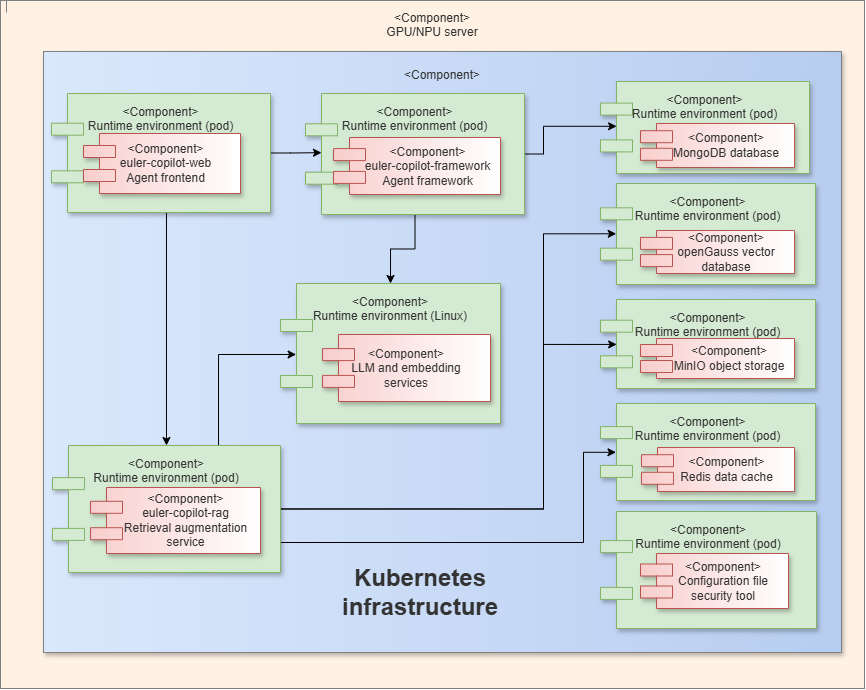
1.1 Deployment Diagram
1.2 Software Requirements
| Type | Resource Name | Version | Download Link |
|---|---|---|---|
| Images | euler-copilot-framework euler-copilot-web data_chain_back_end data_chain_web authhub authhub-web opengauss redis mysql minio mongo secret_inject | 0.9.5 0.9.5 0.9.5 0.9.5 0.9.3 0.9.3 7.0.0-RC1 7.4-alpine 8 empty 7.0.16 dev | Image Package Link |
| Models | bge-m3-Q4_K_M deepseek-llm-7b-chat-Q4_K_M | N/A N/A | Model Link |
| Tools | helm k3s ollama | v3.15.0 v1.30.3 0.6.5 | Tool Package Link |
2. Building the RAG System
openEuler Intelligence is an AI assistant built on the openEuler operating system. It helps users solve various technical problems and provides technical support and consultation services. Leveraging state-of-the-art natural language processing and machine learning algorithms, it understands user questions and delivers corresponding solutions. Its installation modes flexibly adapt to different environments:
- Online mode: Automatically pulls images and deploys with one click, suitable for cloud or personal development environments with network access.
- Offline mode: Manually imports image files, ensuring stable operation in intranet or security-sensitive scenarios.
The two modes differ only in the resource preparation phase. All subsequent steps are identical. You can choose either mode based on your actual needs.
2.1 Preparing Resources
- Online mode (using release-0.9.5 as an example)
git clone https://gitee.com/openeuler/euler-copilot-framework.git -b release-0.9.5- Offline mode
Obtain the openEuler Intelligence project
Download the compressed package from the official openEuler Intelligence repository, upload it to the server, and extract it.bashunzip euler-copilot-framework.tar -d <YourPath>Obtain images, models, and tool packages
Refer to the resource list in Section 1.2 and download the required images, models, and tool packages from the openEuler Intelligence resource download page. Note that the image version must match the project version. Taking release-0.9.5 as an example, the image version must also be 0.9.5.
Ensure that the following directories exist on the server and place the downloaded resources into the corresponding folders:
/home/eulercopilot/
├── images/    # Store image files
├── models/    # Store model files
└── tools/     # Store tool packages
Before running, verify that the directory permissions are set to root (the
semanticsdirectory is generated at runtime and can be ignored).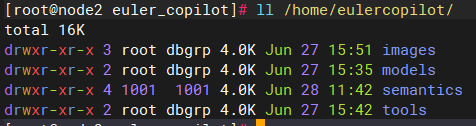
The online and offline modes differ only in the resource preparation phase. All subsequent steps are identical.
2.2 Running the Deployment Script
# Change to the deployment script directory
cd euler-copilot-framework/deploy/scripts
# Add executable permissions to the script files
chmod -R +x ./*
# Run the deployment script
bash deploy.sh
2.3 Starting Service Deployment
After running the deployment script, the following deployment menu appears. We will use the manual step-by-step deployment approach to better understand each step in the process.
==============================
        Main Deployment Menu
==============================
0) One-click Auto Deployment
1) Manual Step-by-Step Deployment
2) Restart Services
3) Uninstall All Components and Clear Data
4) Exit
==============================
Please enter an option number (0-3): 1
# Enter an option number (0-9) to deploy step by step
==============================
Manual Step-by-Step Deployment Menu
==============================
1) Run Environment Check Script
2) Install k3s and helm
3) Install Ollama
4) Deploy Deepseek Model
5) Deploy Embedding Model
6) Install Database
7) Install AuthHub
8) Install EulerCopilot
9) Return to Main Menu
==============================
Please enter an option number (0-9):Note:
If images cannot be imported into k3s during script execution, runk3s ctr images import xxx.tarto manually import the images into k3s.
Ensure that each step completes successfully without error messages before proceeding to the next step. Once all service pods are in a normal state, you are ready to access openEuler Intelligence.
[root@localhost euler_copilot]# kubectl get pods -A
NAMESPACE       NAME                                      READY   STATUS      RESTARTS   AGE
euler-copilot   authhub-backend-deploy-9f46b886b-c25nl    1/1     Running     0          29h
euler-copilot   authhub-web-deploy-7957555974-7fgsx       1/1     Running     0          29h
euler-copilot   framework-deploy-cffdfc75f-pvv4c          1/1     Running     0          9m21s
euler-copilot   minio-deploy-746786cf66-6rnwt             1/1     Running     0          29h
euler-copilot   mongo-deploy-c89868d7d-5nczl              1/1     Running     0          29h
euler-copilot   mysql-deploy-7c6b8997cf-xrqjp             1/1     Running     0          29h
euler-copilot   opengauss-deploy-968d7848d-vqgjw          1/1     Running     0          11m
euler-copilot   rag-deploy-79ddfd786d-rtzw9               1/1     Running     0          38s
euler-copilot   rag-web-deploy-7df6d6b66d-bkh5v           1/1     Running     0          19h
euler-copilot   redis-deploy-7fb5b67844-kv9mz             1/1     Running     0          29h
euler-copilot   web-deploy-59dcfb78f7-cd54l               1/1     Running     0          19h
kube-system     coredns-576bfc4dc7-9v7dm                  1/1     Running     0          29h
kube-system     helm-install-traefik-crd-wwv9f            0/1     Completed   0          19h
kube-system     helm-install-traefik-dgszg                0/1     Completed   0          19h
kube-system     local-path-provisioner-6795b5f9d8-msz9p   1/1     Running     0          29h
kube-system     metrics-server-557ff575fb-grbm6           1/1     Running     0          29h
kube-system     svclb-traefik-be11ef18-qzv8d              2/2     Running     0          29h
kube-system     traefik-5fb479b77-pcbgr                   1/1     Running     0          29h
If you already have an Ollama service running locally with embedding and chat LLMs pulled, you can skip steps 3-5. After installing the openEuler Intelligence service, modify the model configuration instead. The steps and content for modification are as follows:
cd euler-copilot-framework/deploy/chart/euler-copilotvim values.yaml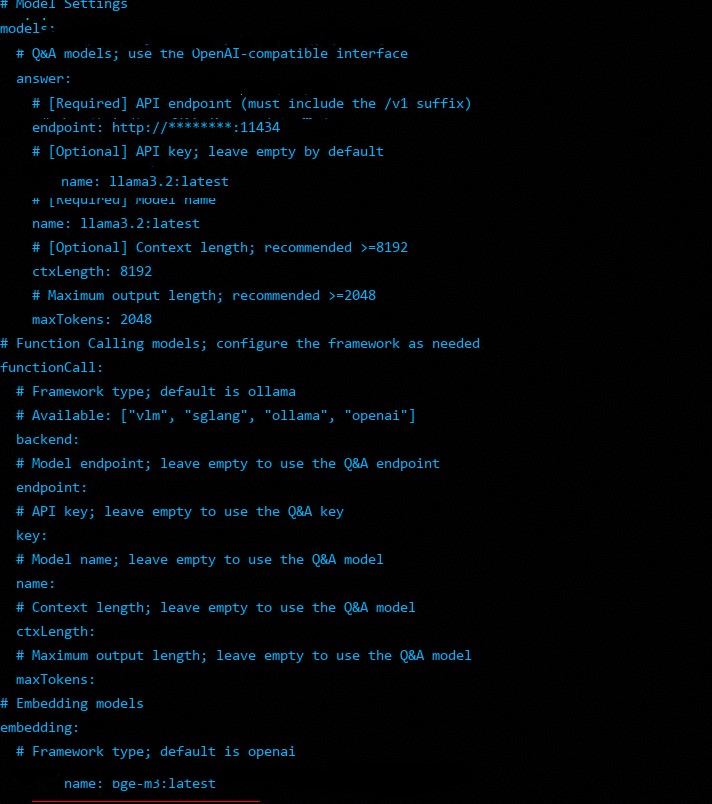
Note that the name, key, and endpoint fields are all required.
After modifying the model name as shown in the figure above, update the euler-copilot deployment:
helm upgrade euler-copilot -n euler-copilot .For other GPU/NPU model deployments, refer to LLM Preparation.
2.4 Accessing the openEuler Intelligence Web Interface
Before accessing the web interface, you need to configure the domain name:
# Configure on the local Windows host
# Open C:\Windows\System32\drivers\etc\hosts and add the following entries
<Server IP> authhub.eulercopilot.local (or your custom domain)
<Server IP> www.eulercopilot.local (or your custom domain)
Finally, enter https://authhub.eulercopilot.local (or your custom domain) in a browser to access the openEuler Intelligence web interface: 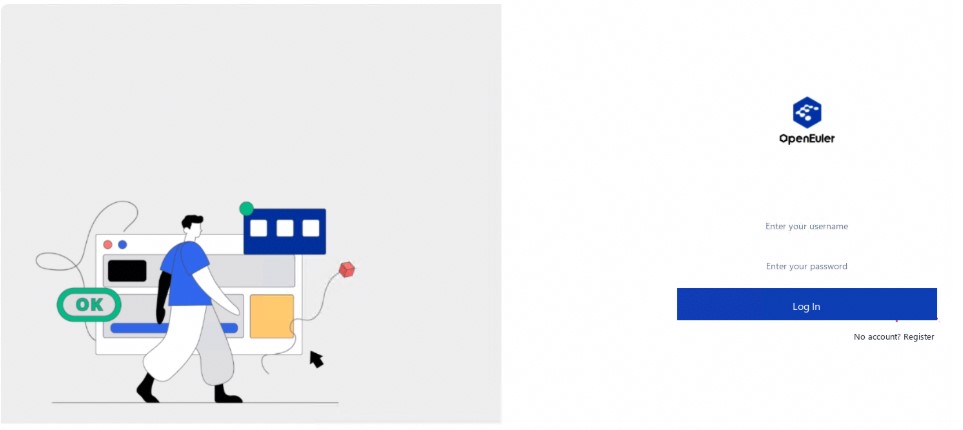
3. Preparing the openGauss Domain Knowledge Base
This article uses building an openGauss knowledge base as an example. You can download and collect the corpus from the openGauss official website.
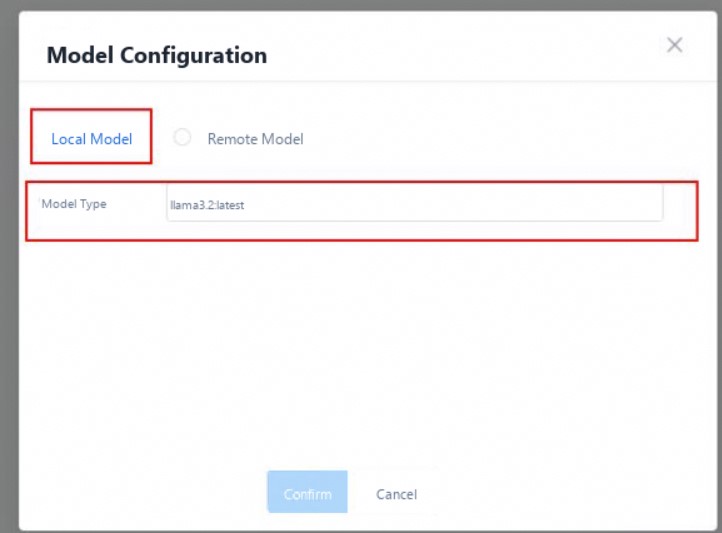
First, select Knowledge Base from the left toolbar on the openEuler Intelligence page. After registering an account and logging in, click the settings button in the upper-right corner to select a language model. Here, we choose the llama3.2 model deployed locally with Ollama. The configuration page is as follows:
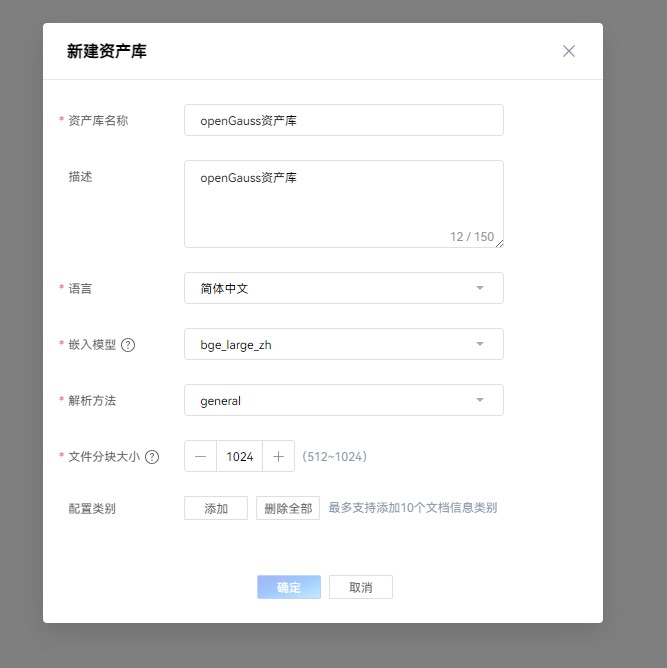
Next, create a dedicated asset library for openGauss. The description field example is shown below:
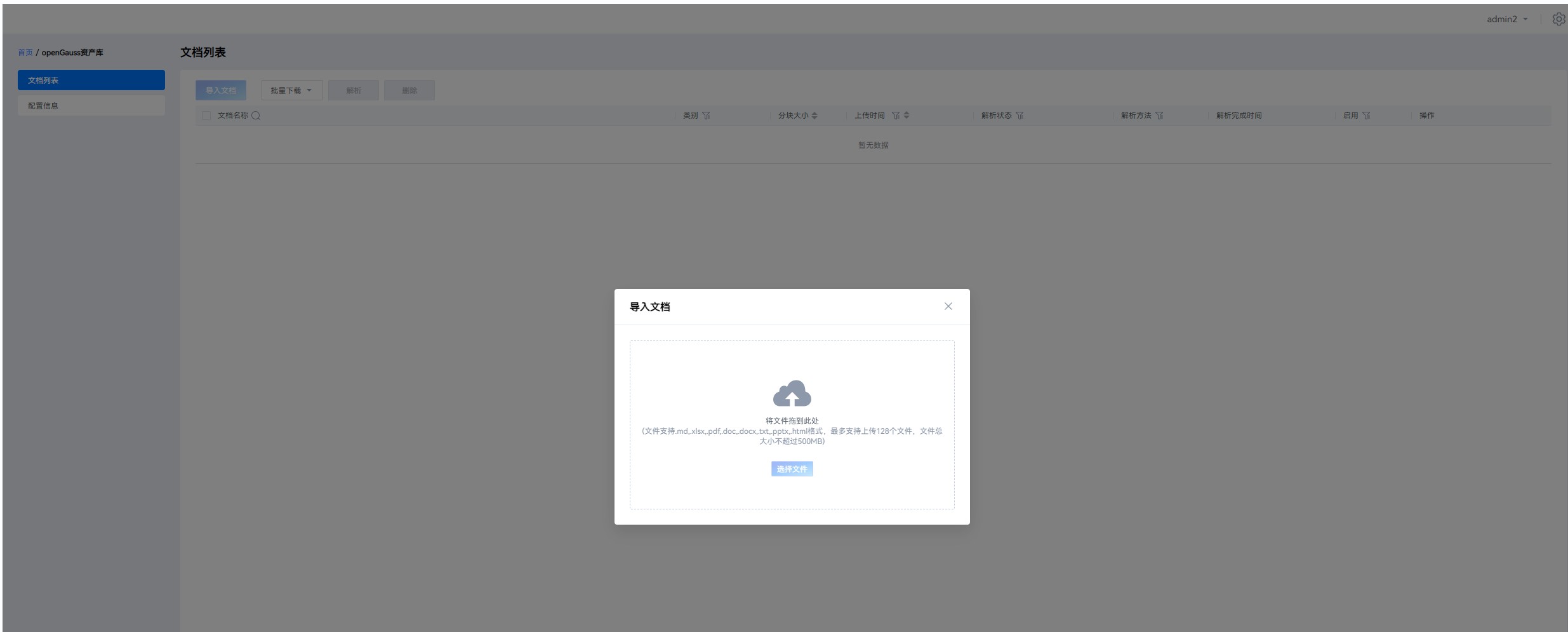
After creating the asset library, click into it to import and parse documents:
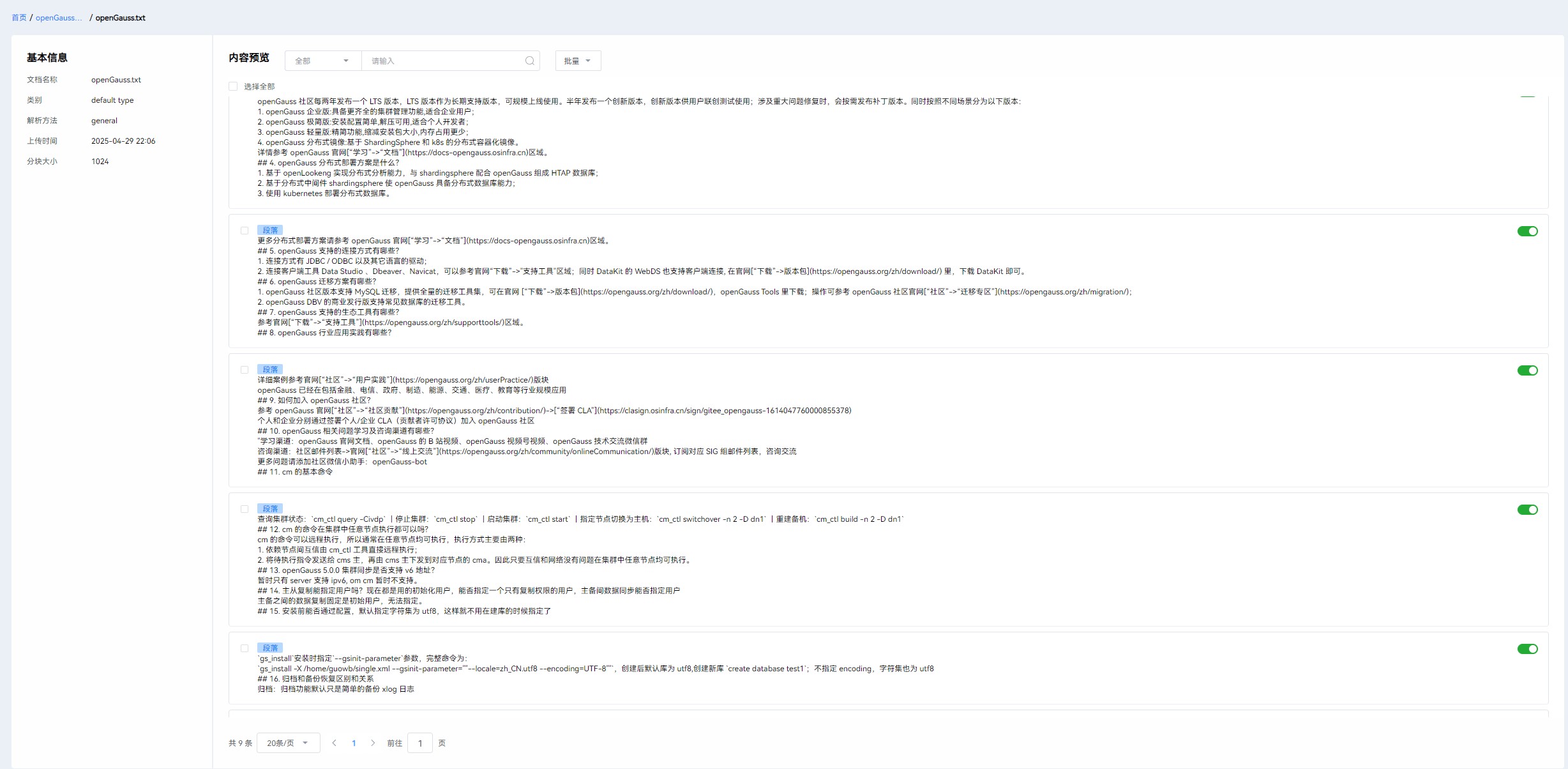
The following image shows the parsed text content. You can use the toggle switch on the right side of the page to select whether to include each text block:
4. Dialogue Testing
Once the domain-specific knowledge base is created, you can integrate it as an external knowledge source into a dialogue application, enabling knowledge-enhanced intelligent Q&A.
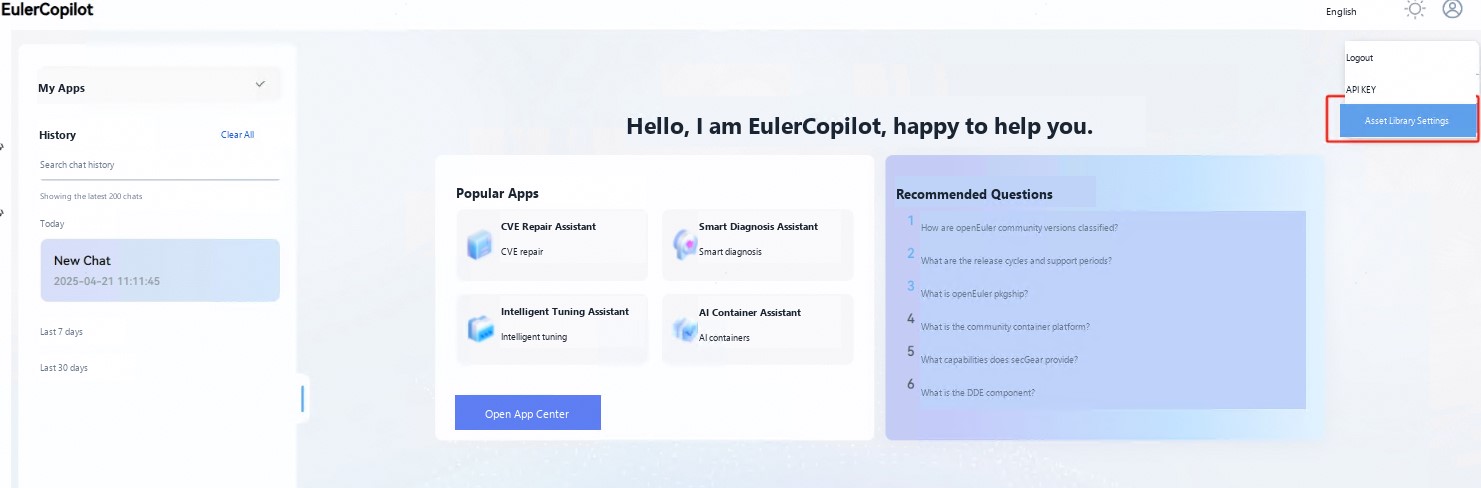
First, obtain the asset library ID from the Knowledge Base interface as a unique identifier. Then, navigate to the Dialogue page and configure the obtained ID in the knowledge base association settings. The settings page is shown below:
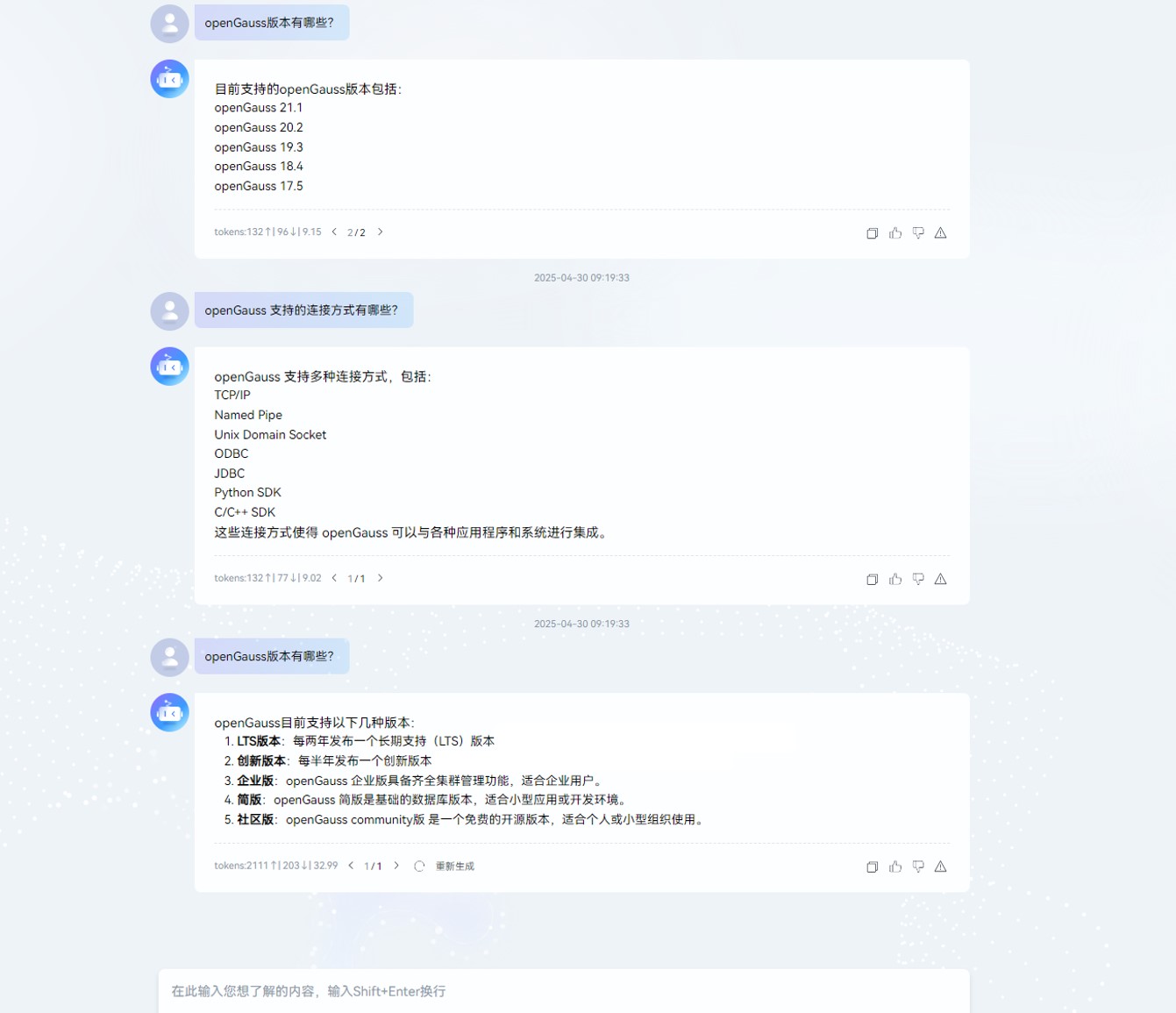
Finally, compare the response quality before and after integrating the knowledge base using a query about "openGauss versions":
Response without the knowledge base: Notable fabricated content, with incorrect version numbers and other key information.
Response with the knowledge base: Accurate version information returned, along with version feature descriptions.Introducing a knowledge base effectively eliminates fabricated responses from LLMs, ensuring the accuracy and reliability of technical details.
At this point, the openEuler Intelligence system built on the openGauss vector database is fully set up.
Summary
Through this hands-on practice, we have not only successfully built a domain-specific intelligent Q&A system based on openEuler Intelligence and openGauss, but also validated the powerful potential of RAG technology in overcoming the limitations of traditional search. This project demonstrates how to deeply integrate cutting-edge AI technology with domain-specific knowledge, offering developers a reproducible technical upgrade path. We hope you can extend this solution to more business scenarios, driving knowledge retrieval technology toward greater intelligence and precision.